Most finance and IT leaders treat the Microsoft 365 bill as a negotiated fixed cost: it arrives, it gets approved, and it rarely gets scrutinized until renewal. That assumption is expensive. Research across enterprise tenants consistently finds that between 10% and 30% of Microsoft 365 licensed capacity produces zero measurable value for the organization paying for it. That’s not rounding error. For a 1,000-seat organization spending roughly $468,000 annually on E3 licenses, an 18% recovery rate alone translates to approximately $84,000 returned to budget, and E5-heavy tenants often recover significantly more per reclaimed seat.
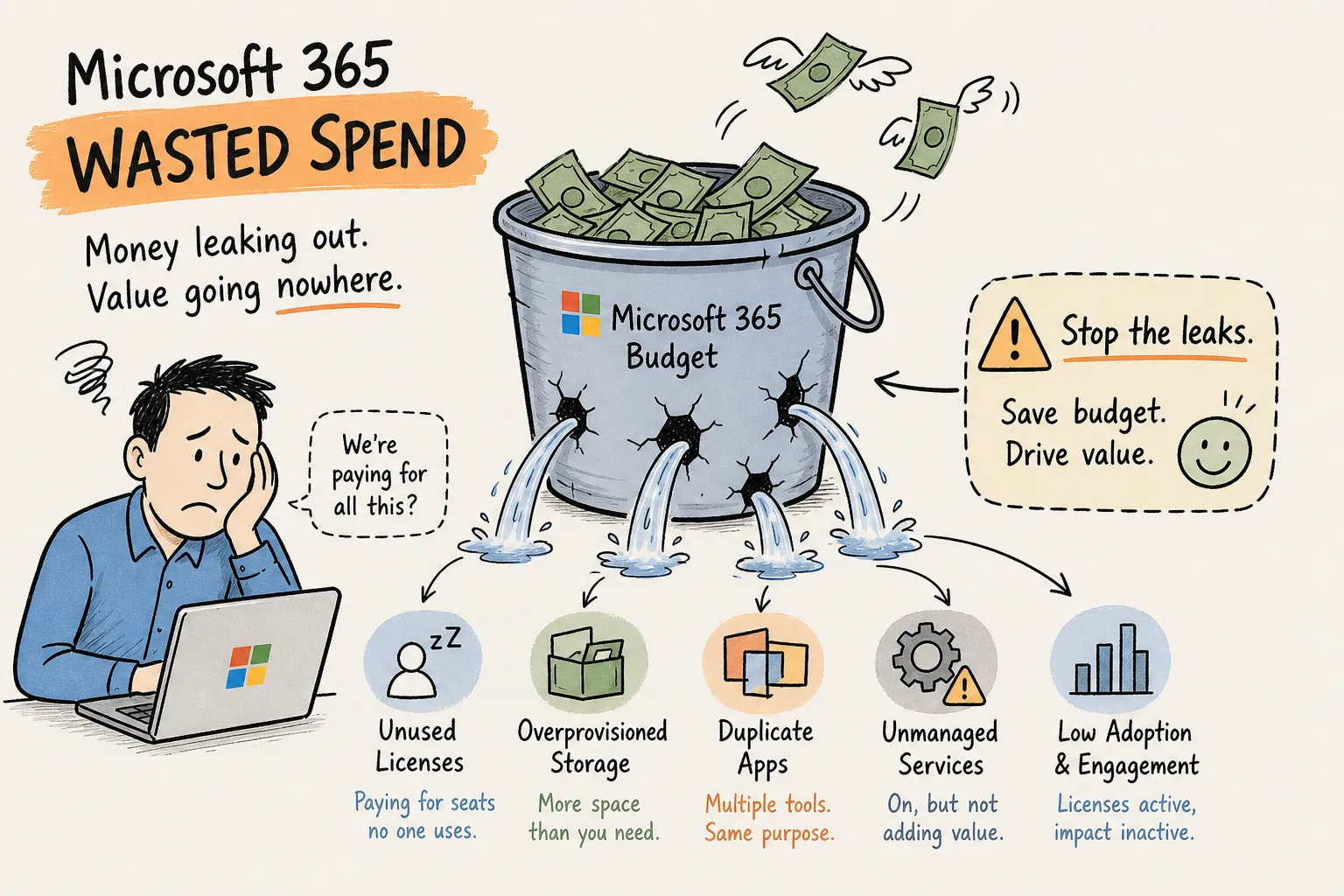
This article breaks down where that Microsoft 365 wasted spend actually lives across five specific budget drains: inactive and unassigned licenses, idle Copilot seats, overlapping SKUs, SharePoint storage overages, and orphaned accounts from broken offboarding. For each one, you’ll see what the waste looks like in the tenant, how much it typically costs, and what remediation actually requires. The problem isn’t that waste is buried in some inaccessible corner of your tenant. It’s that most organizations are looking at the wrong data to find it.
How Microsoft 365 wasted spend shows up in your tenant
Inactive and unassigned licenses
This is the most common pattern found in any M365 license audit, and it appears in two forms. The first is seats assigned to users who haven’t signed in for 30, 60, or 90-plus days, often because offboarding was incomplete or delayed. The second is seats sitting in the tenant pool that were purchased in advance and never assigned to anyone. Native admin reports surface sign-in inactivity, but they stop there. Feature-level usage data routinely reveals a true inactive count that is higher than sign-in logs suggest, because a user who opens Outlook once a week still shows as “active” in Microsoft’s own reporting. Addressing Office 365 unused licenses is one of the fastest ways to cut recurring costs without touching any active user’s workflow.
Idle Copilot seats driving no measurable ROI
Copilot seat waste has become one of the most significant new line items in 2026 M365 budgets. At roughly $30 per user per month, a cohort of 200 idle Copilot seats burns $72,000 annually with nothing to show for it. Enterprise adoption data makes the problem concrete: month-three activation rates hover around 8% in some tenant datasets, meaning the majority of purchased seats go untouched after the initial rollout enthusiasm fades. Most organizations deployed Copilot broadly without building adoption tracking first, so there’s no mechanism to catch the drift before the next billing cycle.
Overlapping SKUs and duplicate third-party tools
Organizations frequently pay for Teams Phone, Defender, or Purview capabilities inside their E3 or E5 SKU while simultaneously renewing standalone third-party tools that cover the same function. The reverse problem is equally costly: users assigned E5 licenses at $60 per user per month when their actual workflow only requires E3 features at $39. At $252 per seat per year in list-price difference, 200 over-licensed users represent $50,400 in annual recoverable spend. Duplicate services are easy to miss because they’re billed separately and reviewed by different teams.
SharePoint storage overages and mailbox bloat
SharePoint storage overages are billed per GB above the tenant’s pooled baseline, and unmanaged site sprawl quietly pushes organizations past their included quota without triggering any alert. The frustrating reality is that overages appear on the invoice as a small line item on a large bill, which means they rarely get escalated to anyone with authority to act on them. In practice, a handful of large file libraries or abandoned project sites tend to drive a disproportionate share of overage costs in most tenants, making this one of the more targeted fixes once the data is in hand.
Orphaned accounts from broken offboarding
Disabled accounts that still carry license assignments, guest accounts that have accumulated over years, and service accounts provisioned for projects that ended long ago represent some of the easiest wins in any license reclamation exercise. The waste is unambiguous: the user is gone, the project is closed, and the license is still active and billing. These accounts also create security exposure, making remediation a dual win for IT and compliance teams. The only reason they persist is that no automated process forces a cleanup at the point of offboarding.
How much enterprises typically recover, and why the numbers surprise
Typical recovery ranges by organization size
A structured M365 license optimization audit typically returns 15% to 30% of annual Microsoft spend, with conservative first-cycle estimates clustering around 15% to 20%. For a 1,000-seat organization spending roughly $468,000 annually on E3 licenses, an 18% recovery rate translates to approximately $84,000 returned to budget. E5-heavy tenants recover more per reclaimed seat given the $252 annual price gap per user between E3 and E5. These are floor estimates based on structured audits, not best-case projections from favorable tenant conditions.
Why finance leaders consistently underestimate the problem
CFOs tend to treat the Microsoft bill as a negotiated fixed cost and review it seriously only at EA renewal. By that point, 12 months of accumulated license drift, new Copilot seats, and storage growth have compounded into a much larger waste figure than anyone expects. The renewal conversation then happens without the per-user, per-SKU data needed to negotiate down effectively. Organizations that run a formal audit 60 to 90 days before renewal tend to perform better in those negotiations than those relying on Microsoft’s vendor-supplied estimates, because they walk into the conversation with numbers the vendor can’t dispute.
Why native admin tools only show part of the picture
What the Microsoft 365 admin center actually shows
The built-in admin center is a legitimate starting point for any license review. Billing and Licenses shows assigned versus unassigned seat counts. Reports and Usage shows active user counts per service. The Microsoft 365 Apps Active Users report includes per-user license fields and assignment dates across Exchange, OneDrive, SharePoint, and Teams. These reports are real, accessible, and free, and there’s no reason not to use them as an initial baseline for a subscription cost optimization exercise.
The gap between sign-in data and feature-level usage
The limitation of native tools is fundamental, not just cosmetic. A user who opens Outlook every day will appear fully active in every Microsoft report, even if they’ve never launched Defender, Purview, Teams Phone, or Copilot, all of which may be bundled into their license at significant per-seat cost. Sign-in data and app launch counts cannot tell you whether someone uses the specific features that justify their SKU tier. That gap, between what Microsoft reports as “active” and what a user actually uses, is where the majority of M365 license waste hides. Surfacing it requires Microsoft Graph API-level queries that go beyond what the admin portal exposes by default. This is also why SaaS spend management platforms built around feature-level signals catch waste that admin center reports routinely miss.
Reducing Microsoft 365 wasted spend: how a 48-hour read-only scan finds the exact dollars
What feature-level usage signals reveal that admin reports miss
Chronom AI is built specifically for this problem. Using a read-only Microsoft Graph API connection, Chronom reads feature-level usage signals across every M365 service, not just sign-in timestamps or app launch counts. The result is a per-user, per-SKU breakdown that shows exactly which licensed capabilities are being used, which are sitting idle, and what the annualized cost of that idle capacity is. Coverage spans M365 licensing, Azure consumption, Copilot seats, and Marketplace commitments in a single scan, so there’s no need to reconcile data from multiple tools or run separate reports for each service area.
From discovery to board-ready savings report in 48 hours
The practical workflow is straightforward. No agents to deploy, no tenant data altered, and no lengthy implementation project. Chronom connects via read-only API, scans more than 40 waste patterns across every user, group, license SKU, mailbox, and SharePoint site, and delivers a savings report within 48 hours. The report names each wasted user and SKU with exact annualized figures, formatted for board-level review or EA negotiation. A zero-change-until-approved architecture means IT teams can run the scan without involving procurement or legal first.
For organizations that don’t want the findings to sit as a backlog, Chronom’s optional managed cleanup service can execute the approved changes directly. Discovery converts to realized savings without consuming internal IT bandwidth or opening a months-long remediation project.
High-impact remediation actions to prioritize first
License reclamation and SKU rightsizing
Once the audit surfaces the waste, the highest-ROI moves are clear. Reclaim licenses from truly inactive users, downgrade over-licensed roles from E5 to E3 where feature usage confirms they don’t need the premium tier, and eliminate duplicate standalone add-ons already covered by the base SKU. These three actions consistently account for a large majority of recoverable savings in a tenant audit. The key execution principle: prioritize by annualized dollar value rather than headcount, so the largest line items get addressed before the next renewal cycle, not after it.
Copilot seat decisions and storage cleanup
For idle Copilot licenses, the decision framework is straightforward. Either build an adoption program that demonstrates measurable workflow impact within a defined window, 30 to 90 days is a common governance benchmark, or reduce the seat count at the next billing cycle. Keeping idle $30-per-user-per-month seats active as a hedge against future adoption costs real money with no return. Storage overages require identifying the top SharePoint sites by size, setting retention policies, and archiving or deleting stale content. In most tenants, a small number of sites drive a disproportionate share of overage costs, which means the fix is targeted rather than organization-wide.
A governance process that keeps waste from rebuilding
Role-based provisioning and auto-reclaim workflows
The most durable fix happens upstream from the waste itself. Assign licenses through Entra ID dynamic groups tied to HR attributes rather than direct per-user assignment, so licenses follow role changes automatically rather than accumulating on departed or role-changed employees. Pair that structure with a clear inactivity policy: 30-day notification to the manager, 45-day downgrade or hold, 90-day full reclamation back to the pool. That sequence converts offboarding from a manual cleanup task into an automated governance event, the only reliable way to prevent the same waste from rebuilding within a quarter.
Continuous monitoring between renewal cycles
A one-time audit is a point-in-time snapshot. Without continuous monitoring, license drift rebuilds within months as new hires get over-provisioned, projects spin up Copilot seats without approval workflows, and offboarding gaps reappear. The right governance model runs ongoing anomaly detection that flags new waste patterns as they emerge, so the organization enters every EA renewal with current, defensible data. Showing up to a vendor negotiation with a 14-month-old audit report is not leverage. Showing up with live per-user usage data from the previous 90 days is.
Turning visibility into recovered budget
Microsoft 365 wasted spend isn’t a procurement failure. It’s a visibility failure. When organizations can see feature-level usage at the per-user, per-SKU level, the remediation decisions stop being debatable and start being obvious. The five drains covered here, inactive licenses, idle Copilot seats, overlapping SKUs, storage overages, and orphaned accounts, are all recoverable with the right data and a clear prioritization framework.
The most important timing decision is running a clean audit before the next renewal cycle, not after it. Once a contract is signed, the leverage disappears for another year. Start with annualized dollar value as your prioritization lens, put role-based provisioning and auto-reclaim governance in place so the savings hold, and treat continuous monitoring as a non-negotiable part of the operating model going forward. Proper SaaS spend management discipline at the Microsoft 365 layer is one of the few places where the payback period is measured in weeks, not quarters.
Chronom AI’s free 48-hour audit is a fast path from suspicion to defensible savings data. No agents, no tenant changes, no credit card required. If you’re ready to see exactly where the budget is leaking and what it’s worth to close those gaps, reach out to our team to get started.