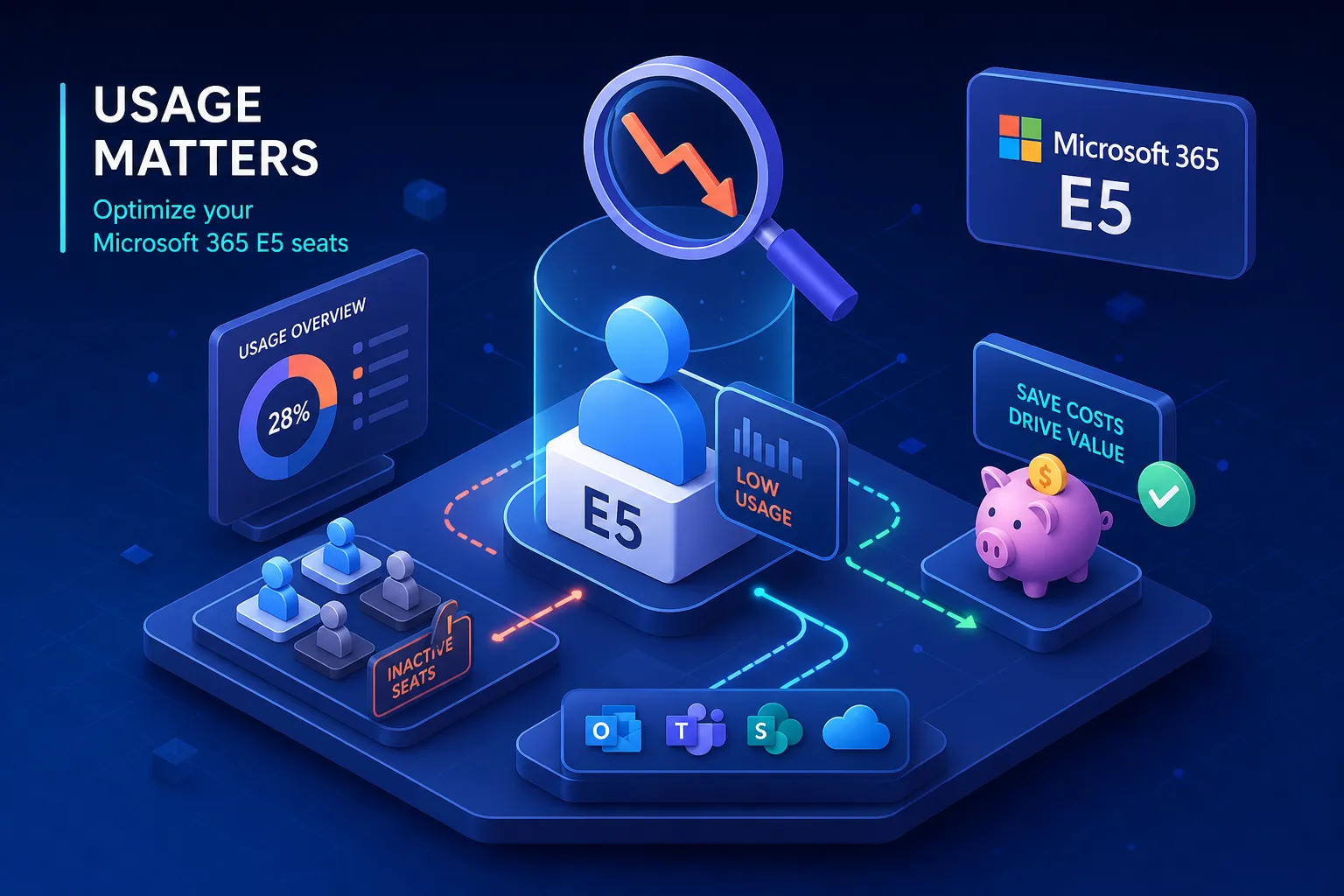
What counts as low usage for a Microsoft 365 E5 license is a question most IT teams struggle to answer precisely, even when they already suspect they’re paying for seats that go largely untouched. Benchmarks from tenant-level audits across mid-to-large enterprises consistently surface 20 to 30 percent of E5 seats as underutilized, yet organizations rarely act because they can’t agree on a measurable definition of “underused.” Without that definition, nobody moves. The budget keeps bleeding, and every EA renewal rolls the same inflated seat count forward.
The instinct is to open the Microsoft 365 admin center, pull the sign-in report, and flag anyone who hasn’t logged in recently. That approach feels logical, but it’s the wrong starting point. A user who signs into Outlook every morning and joins Teams meetings three times a day can still be consuming nothing but E1-level services. The sign-in timestamp records authentication. It says nothing about whether that user has ever touched a single E5-exclusive feature.
Defining low usage for an E5 seat requires feature-level telemetry, not authentication logs. This guide walks through exactly what that means: which features constitute E5 utilization, what thresholds practitioners use to flag underuse, where to pull the data, and what to check before you make a move.
Why sign-in data gives you the wrong picture
Microsoft Entra sign-in logs capture two distinct signals: lastSignInDateTime records the last interactive authentication attempt, and lastSuccessfulSignInDateTime records the most recent successful login. Both are useful for identifying dormant accounts, those that haven’t been touched in months, but sign-in timestamps measure authentication events, not in-app feature usage. On their own, they are insufficient to identify overprovisioned seats.
An E5 seat carries a significant price premium over E3. That premium covers Microsoft Defender XDR, Purview eDiscovery Premium, Teams Phone System, Audio Conferencing, Power BI Pro, and Microsoft 365 Copilot. A user who only reads email, attends Teams meetings, and stores files on OneDrive is consuming E1-equivalent services regardless of what their sign-in log says. The Microsoft 365 admin center usage reports partially address this gap, though only partially. Teams activity and Microsoft 365 Apps active-user reports support per-user export and give you a reasonable baseline for collaboration-layer activity. Defender usage must be assessed from the Defender portal separately, and Purview eDiscovery case data lives in the compliance portal. No single built-in report aggregates E5-specific feature usage across all premium services for a given user, a structural limitation that is central to the M365 product usage report problem most IT teams face.
What full E5 utilization actually looks like
Before you can measure underuse, you need a shared definition of use. E5 adds three broad capability layers on top of E3. Full utilization means a seat is consuming meaningful activity across at least some of each layer, a reasonable organizational policy threshold given the price differential between E5 and E3.
Security layer
The security stack is the most substantial differentiator. E5 includes Defender for Endpoint Plan 2 with automated investigation and advanced threat hunting, Defender for Office 365 Plan 2 with attack simulation training and campaign views, Defender for Cloud Apps for CASB and shadow IT discovery, Defender for Identity, and Entra ID P2 features including Privileged Identity Management, Identity Protection, and risk-based conditional access. A user who has never triggered a Defender alert, has no conditional access policies applied, and has never used PIM is not consuming this layer at all.
Compliance layer
The compliance layer adds Purview eDiscovery Premium with review sets and predictive coding, Insider Risk Management, Communication Compliance, and advanced audit capabilities. E3 includes only eDiscovery Standard. A user who has never been a custodian in a Purview case, is not in scope for any insider risk policy, and has no communication compliance monitoring applied is not consuming this layer either.
Productivity add-ons
The productivity add-ons round out the E5 picture: Teams Phone System, Audio Conferencing, Power BI Pro, and Microsoft 365 Copilot. These are among the easiest to audit because Teams call logs, Power BI workspace activity, and Copilot interaction data produce relatively clean per-user signals. A seat with zero Teams PSTN records, no Power BI workspace interaction, and no Copilot activity over 90 days is measurably unused in this layer.
What counts as low usage for a Microsoft 365 E5 license: thresholds that flag underuse
The most commonly used benchmark across IT optimization teams and MSP workflows is 90 days of zero E5-exclusive feature activity as the trigger for a downgrade recommendation. That figure isn’t arbitrary: it’s long enough to account for normal work cycles, short trips, and quarterly patterns without being so long that you miss an entire renewal window. Most IT optimization teams and MSP workflows treat 90 days as the standard action threshold for license optimization in Microsoft 365 environments, while 30 days works as an alert window for accounts with zero sign-in across all services, and 60 days is a reasonable trigger for proactive review.
For organizations with seasonal patterns, extended leave policies, or fiscal-quarter-driven workloads, 120 to 180 days is the safer window. The goal is to avoid flagging a security analyst who was on parental leave for 10 weeks as a genuine downgrade candidate. The threshold you choose should reflect your organization’s actual work patterns, with 90 days as the practical starting point for most mid-market and enterprise environments.
At the feature level, the signals that confirm what counts as low usage for a Microsoft 365 E5 license are specific. A low-usage E5 seat typically shows a combination of the following:
- Zero Defender for Endpoint alerts or investigations initiated in 90 days
- No Copilot interaction activity in 60 days
- Zero Teams PSTN or Audio Conferencing call records
- No eDiscovery case participation or custodian assignment
- No Insider Risk Management or Communication Compliance policy scope inclusion
- Power BI workspace: zero report views or dataset refreshes
Critically, these signals must be evaluated together. A security analyst may never use Teams Phone or Power BI but fully consumes E5 through Defender for Endpoint and Purview. Flagging that user for downgrade based on call records alone would be a significant mistake. Determining low usage requires a composite view across all premium layers, a single-signal rule will consistently produce the wrong answer.
Watch out for false positives. Accounts accessed exclusively via background token refreshes won’t appear active in standard usage reports even though they’re legitimately in use. Executive accounts relying on delegate access show similar patterns, since delegated access doesn’t always register as direct user activity in per-user activity reports from Azure AD. Users on extended medical or parental leave will hit any inactivity threshold without being genuine downgrade candidates. These are the most common sources of error in manual E5 audits.
How to pull the data you actually need
The Microsoft 365 admin center is your starting point but not your finish line. Navigate to Reports, then Usage, to access per-user activity exports for Teams and Microsoft 365 Apps. Both support CSV export and give you a reasonable baseline for collaboration-layer activity. The limitation is structural: Defender usage must be assessed from the Defender portal separately, and Purview eDiscovery case data lives in the compliance portal. No single admin-center export produces a complete E5 utilization picture for any individual user.
For teams that need more automated or granular data, the Microsoft Graph reports API is the programmatic path. The /auditLogs/signIns endpoint exposes tenant sign-in patterns and can be queried with KQL after routing Entra logs to Log Analytics. A basic query grouping sign-ins by user and application over 30 days gives you app-access frequency per user. The core limitation holds here too: sign-in logs confirm that a user accessed an app, not what they did inside it. For true feature-level usage, pair Graph sign-in data with Microsoft 365 Usage Analytics in Power BI, which provides native product-usage metrics beyond raw authentication events and is one of the more reliable sources for M365 product usage report data at the per-user level.
The practical reality is that building a complete E5 utilization view manually requires reconciling data from at least four separate portals: the admin center, the Defender portal, the Purview compliance portal, and a Power BI workspace. For most IT teams, that cross-portal reconciliation is where the audit either stalls or produces an incomplete picture.
What you actually lose when you downgrade from E5 to E3
Moving a user from E5 to E3 is not a cosmetic change. The security losses alone carry meaningful operational risk. Defender for Endpoint drops from Plan 2 to Plan 1, removing automated investigation and advanced threat hunting. Defender for Office 365 drops to Plan 1, losing attack simulation training and campaign views. Defender for Cloud Apps is removed entirely, taking CASB and shadow IT discovery with it. Entra ID P2 features including PIM and Identity Protection are gone, along with risk-based conditional access controls.
On the compliance side, eDiscovery Premium is replaced by eDiscovery Standard, Insider Risk Management is removed, and Communication Compliance is no longer available. For any user under active compliance obligations or involved in ongoing legal matters, a downgrade without alternative controls in place creates a genuine regulatory gap. Tenant-level audits across enterprise environments consistently surface roughly 23% inactive E5 licenses and another 27% unassigned, two distinct categories that together represent substantial recoverable spend. But the downgrade action itself requires a pre-change compliance check, not just a usage check.
Before changing any E5 license, run through this sequence, it applies whether you’re acting on a single seat or a bulk downgrade list:
- Confirm the user is not in scope for any active eDiscovery case or legal hold
- Verify no Insider Risk Management or Communication Compliance policy covers the user
- Check whether the user holds any Privileged Identity Management roles
- Confirm no active Teams Phone or Audio Conferencing dependency
- Review Power BI report ownership or workspace admin rights
- Document the change for your next EA audit or renewal discussion
If the user was previously a custodian in a Purview eDiscovery Premium case, the downgrade does not automatically remove them from that case. The organization remains responsible for maintaining appropriate license coverage for any user whose data is still part of an active premium matter. A downgrade in that scenario creates both a licensing compliance issue and a defensibility risk for the investigation itself.
What manual reporting consistently misses
The fragmentation problem described above is not a workflow inconvenience. It’s the reason most manual E5 audits produce incomplete results or never get finished. The signals that define E5 utilization live in different portals, use different data models, and require hand reconciliation to produce a per-user picture. Even a thorough manual effort tends to miss the composite view: an E5 seat where the user has a Defender alert in the security portal, no Copilot activity, zero Power BI usage, and OneDrive activity below 500 MB is a nuanced profile that no single built-in report captures cleanly.
That fragmentation problem is precisely what Chronom AI addresses. Rather than replacing manual effort with another partial view, Chronom pulls live usage signals across Microsoft 365 services via the Microsoft Graph API in read-only mode, covering more than 40 usage patterns without disrupting your tenant. The platform delivers a full savings report within 48 hours. Where the admin center surfaces workload-level sign-in activity, Chronom’s feature-level analysis identifies the exact user, the exact SKU, and the recoverable annual cost tied to each underutilized seat.
The output goes beyond a general estimate. It names each user, identifies which E5-exclusive features they haven’t used, specifies the right downgrade path, whether that’s E3, Business Premium, or a targeted add-on bundle, and quantifies the savings per seat. For organizations within six to twelve months of an EA or CSP renewal, that named-user-level evidence gives procurement and finance a defensible, data-backed position at the negotiation table. For teams that want to go further, Chronom’s optional managed execution service handles the approved changes directly, turning findings into realized savings without adding work to your team’s plate.
Turning the definition into action
Low E5 utilization is not a sign-in question. It’s a feature-consumption question, and the answer requires looking at Defender, Purview, Teams Phone, Power BI, and Copilot activity together. The 90-day threshold for E5-exclusive feature inactivity is the practical standard most organizations and MSPs use for license optimization in Microsoft 365 environments, but reaching that conclusion through manual reporting means reconciling data across at least four separate portals with no guarantee the picture is complete.
The compliance check before any downgrade is non-negotiable. Staying on E5 for users who never touch its premium features costs real money at every renewal cycle. Tenant-level audits consistently find roughly 23% of E5 licenses inactive and another 27% unassigned in enterprise environments, two separate figures that represent distinct categories of recoverable spend. At E5 pricing, that’s a number worth quantifying before your next commitment locks in.
If you need to know what counts as low usage for a Microsoft 365 E5 license in your tenant, the 90-day feature inactivity checklist above is the right starting point before any downgrade decision. For a complete, per-user picture across all premium layers, reach out to the Chronom AI team to start a 48-hour tenant scan. The report tells you who to act on, what to change, and what it’s worth, no guesswork required.